Traefik Pilot
作者: ryan 发布于: 2025/8/17 更新于: 2025/8/17 字数: 0 字 阅读: 0 分钟
虽然 Traefik 已经默认实现了很多中间件,可以满足大部分我们日常的需求,但是在实际工作中,用户仍然还是有自定义中间件的需求,这就 Traefik Pilot 的功能了。

Traefik Pilot 是一个 SaaS 平台,和 Traefik 进行链接来扩展其功能,它提供了很多功能,通过一个全局控制面板和 Dashboard 来增强对 Traefik 的观测和控制:
- Traefik 代理和代理组的网络活动的指标
- 服务健康问题和安全漏洞警报
- 扩展 Traefik 功能的插件
在 Traefik 可以使用 Traefik Pilot 的功能之前,必须先连接它们,我们只需要对 Traefik 的静态配置进行少量更改即可。
Traefik 代理必须要能访问互联网才能连接到 Traefik Pilot,通过 HTTPS 在 443 端口上建立连接。
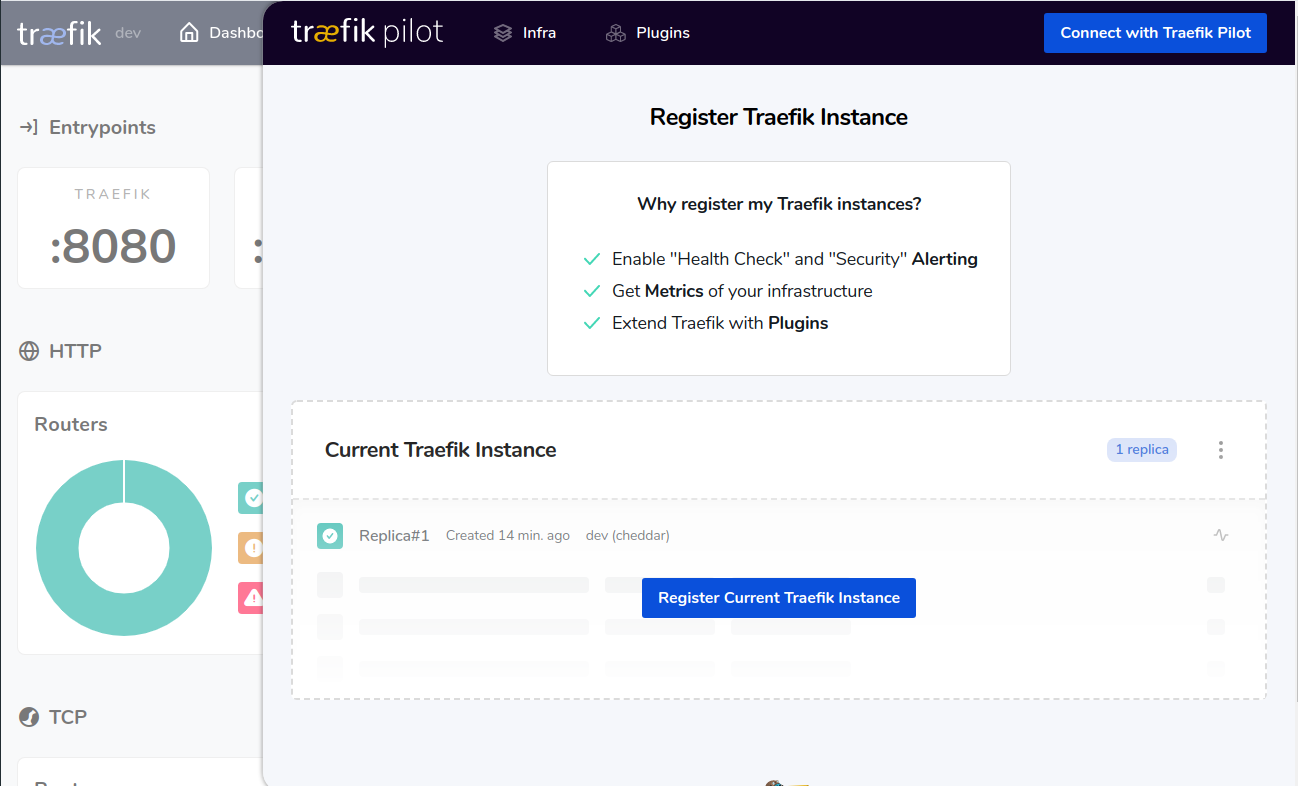
首先我们需要在 Traefik Pilot 主页上(https://pilot.traefik.io/)创建一个帐户,注册新的 Traefik 实例并开始使用 Traefik Pilot。登录后,可以通过选择 Register New Traefik Instance来创建新实例。
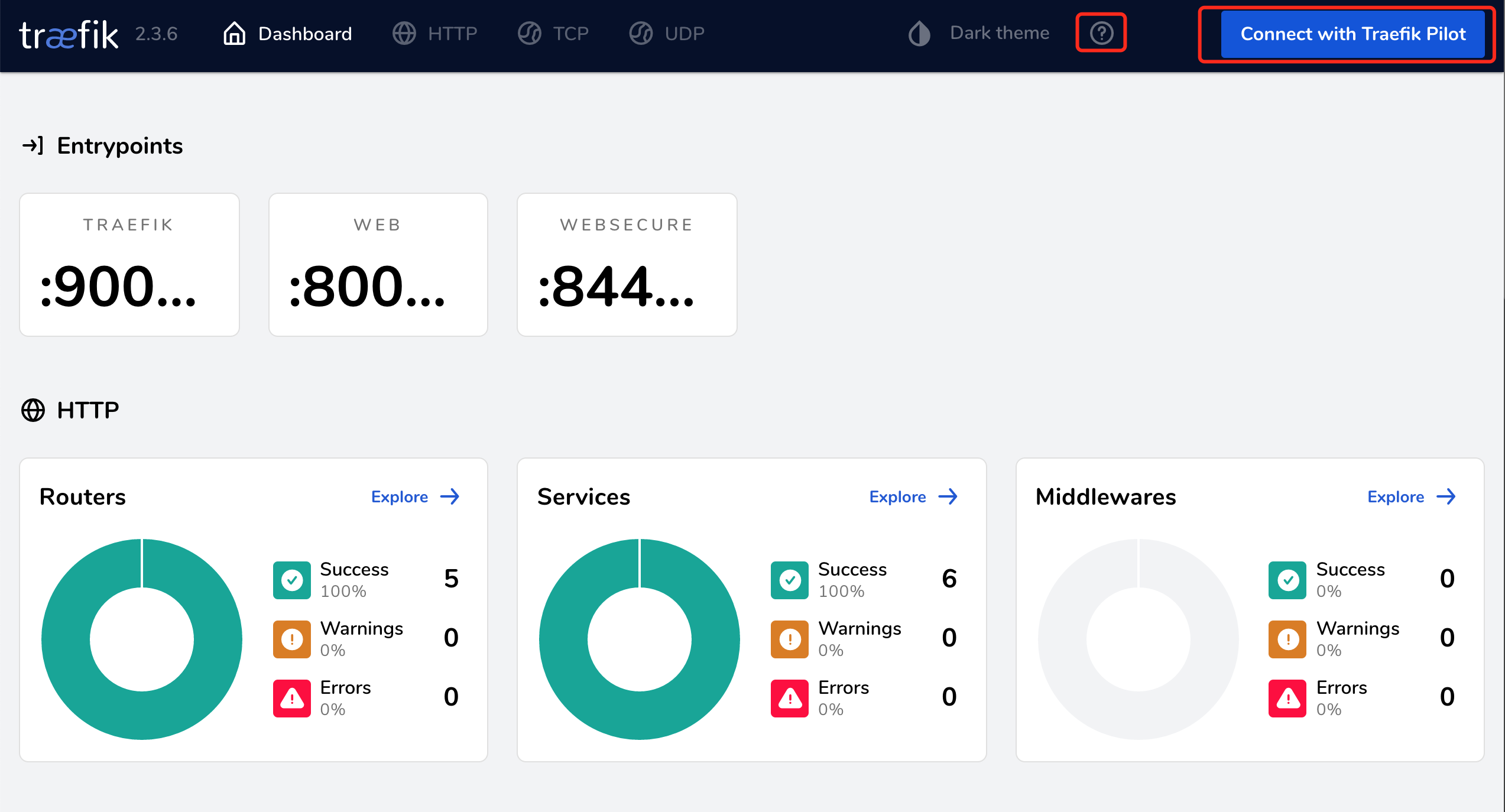
另外,当我们的 Traefik 尚未连接到 Traefik Pilot 时,Traefik Web UI 中将出现一个响铃图标,我们可以选择 Connect with Traefik Pilot 导航到 Traefik Pilot UI 进行操作。
注意:
Traefik Pilot 已经停止服务。Traefik Pilot 是一个用于管理和监控 Traefik 实例的云平台工具。根据你提供的信息,从 2022 年 10 月 4 日起,Traefik Pilot 已经不再可用。这意味着用户无法再使用该平台来管理和监控他们的 Traefik 负载均衡器和反向代理设置。
安装社区插件
由于 Traefik Pilot 已经下线,原本通过 Traefik Pilot 安装和管理的插件系统(也称为 “Middlewares”)不再可用。不过,通过 Traefik 的官方插件目录(即 Traefik 插件目录)仍然可以安装和使用插件。虽然 Traefik Pilot 已经下线,但 Traefik 仍然支持通过插件目录来下载和使用社区或官方提供的插件。
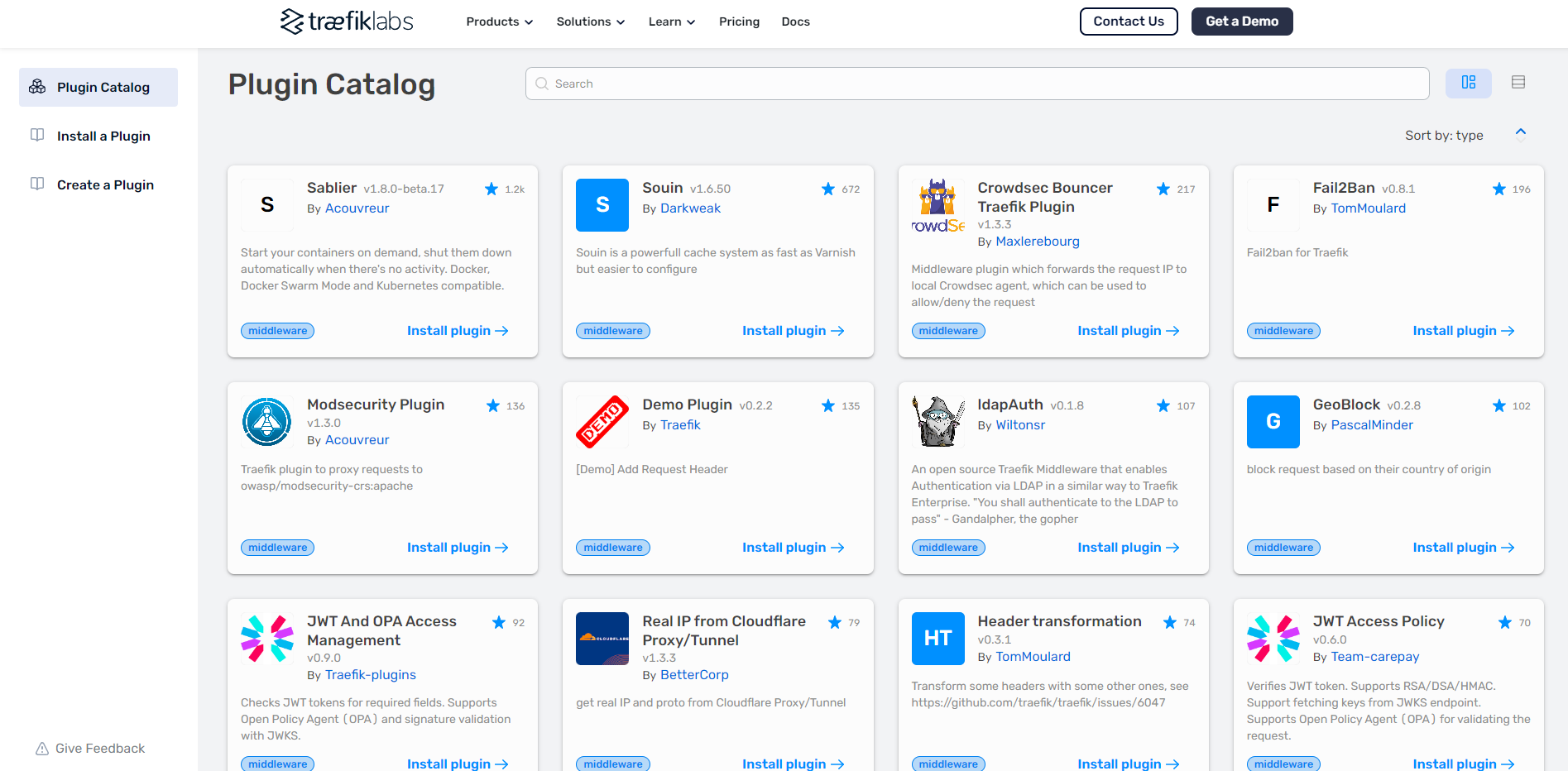
接下来我们就可以在插件页面选择我们想要使用的插件,比如我们这里使用 Demo Plugin 这个插件。
点击右上角的 Install Plugin 按钮安装插件会弹出一个对话框提示我们如何安装。
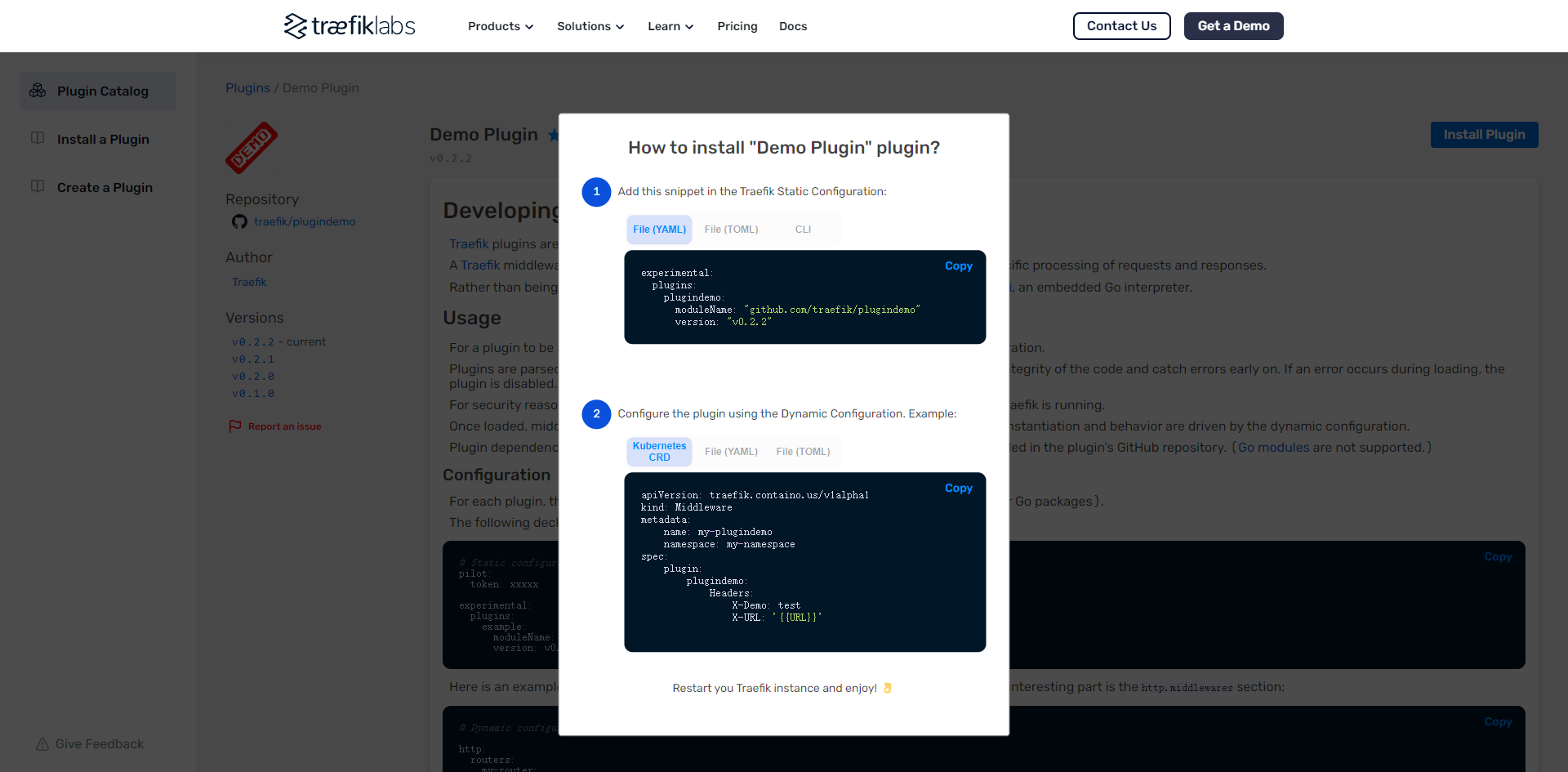
1. 将插件代码推送到国内仓库
Traefik 在加载插件时需要访问外部网络,特别是要连接到 GitHub 或其他代码仓库来下载和更新插件代码。因此,如果你的服务器无法访问 GitHub 或外部网络,就会导致插件无法安装或更新。
root@master01:/k8s-traefik/traefik-plug# git clone git@codeup.aliyun.com:66cf2d9246ea41274957ff8d/Traefik/plugindemo.git
Cloning into 'plugindemo'...
The authenticity of host 'codeup.aliyun.com (118.31.165.50)' can't be established.
RSA key fingerprint is SHA256:yEGmgQNVrc3QAvDvoBrTCF2s07KwmmQ+AbWi9vSt/fE.
Are you sure you want to continue connecting (yes/no/[fingerprint])? yes
Warning: Permanently added 'codeup.aliyun.com,118.31.165.50' (RSA) to the list of known hosts.
remote: Enumerating objects: 96, done.
remote: Counting objects: 100% (96/96), done.
remote: Total 96 (delta 0), reused 0 (delta 0), pack-reused 0
Receiving objects: 100% (96/96), 89.57 KiB | 1.79 MiB/s, done.experimental:
plugins:
plugindemo:
moduleName: "gitlab.yourcompany.com/traefik/plugindemo"
version: "v0.2.2"
git@codeup.aliyun.com:66cf2d9246ea41274957ff8d/Traefik/plugindemo.git首先我们需要将当前 Traefik 注册到 Traefik Pilot(已完成),然后需要以静态配置的方式添加这个插件到 Traefik 中,这里我们同样更新 ci/deployment-prod.yaml 文件中的 Values 值即可:
# ci/deployment-prod.yaml
# Activate Pilot integration
pilot:
  enabled: true
  token: 'e079ea6e-536a-48c6-b3e3-f7cfaf94f477'

additionalArguments:
  # 添加 demo plugin 的支持
  - --experimental.plugins.plugindemo.modulename=github.com/traefik/plugindemo
  - --experimental.plugins.plugindemo.version=v0.2.1
# 其他配置同样重新更新 Traefik:
$ helm upgrade --install traefik --namespace=kube-system ./traefik -f ./ci/deployment-prod.yaml更新完成后创建一个如下所示的 Middleware 对象:
$ cat <<EOF | kubectl apply -f -
apiVersion: traefik.containo.us/v1alpha1
kind: Middleware
metadata:
  name: myplugin
spec:
  plugin:
    plugindemo:  # 插件名
      Headers:
        X-Demo: test
        Foo: bar
EOF然后添加到上面的 whoami 应用的 IngressRoute 对象中去:
apiVersion: traefik.containo.us/v1alpha1
kind: IngressRoute
metadata:
  name: ingressroute-demo
  namespace: default
spec:
  entryPoints:
    - web
  routes:
    - match: Host(`who.qikqiak.com`) && PathPrefix(`/notls`)
      kind: Rule
      services:
        - name: whoami # K8s Service
          port: 80
      middlewares:
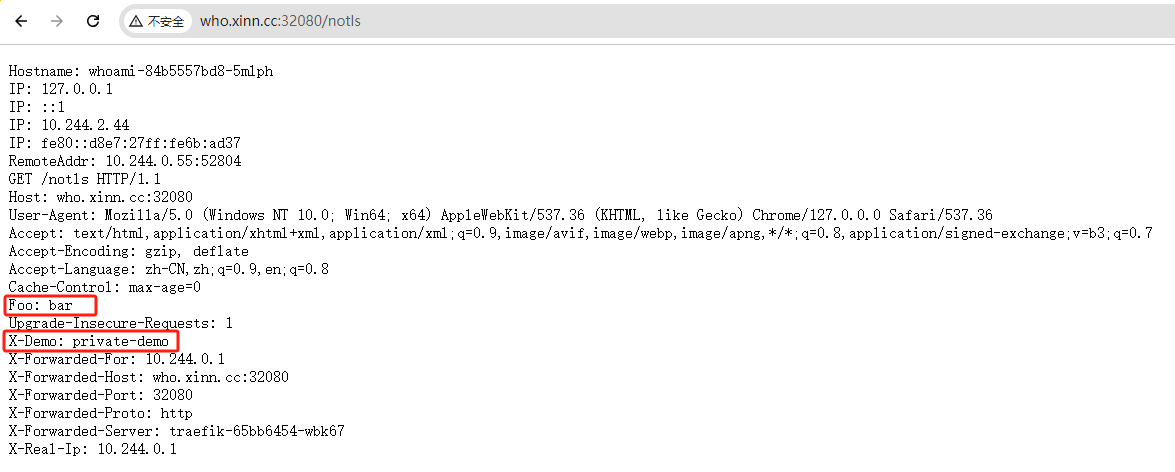
- name: myplugin # 使用上面新建的 middleware更新完成后,当我们去访问 http://who.qikqiak.com/notls 的时候就可以看到新增了两个上面插件中定义的两个 Header。
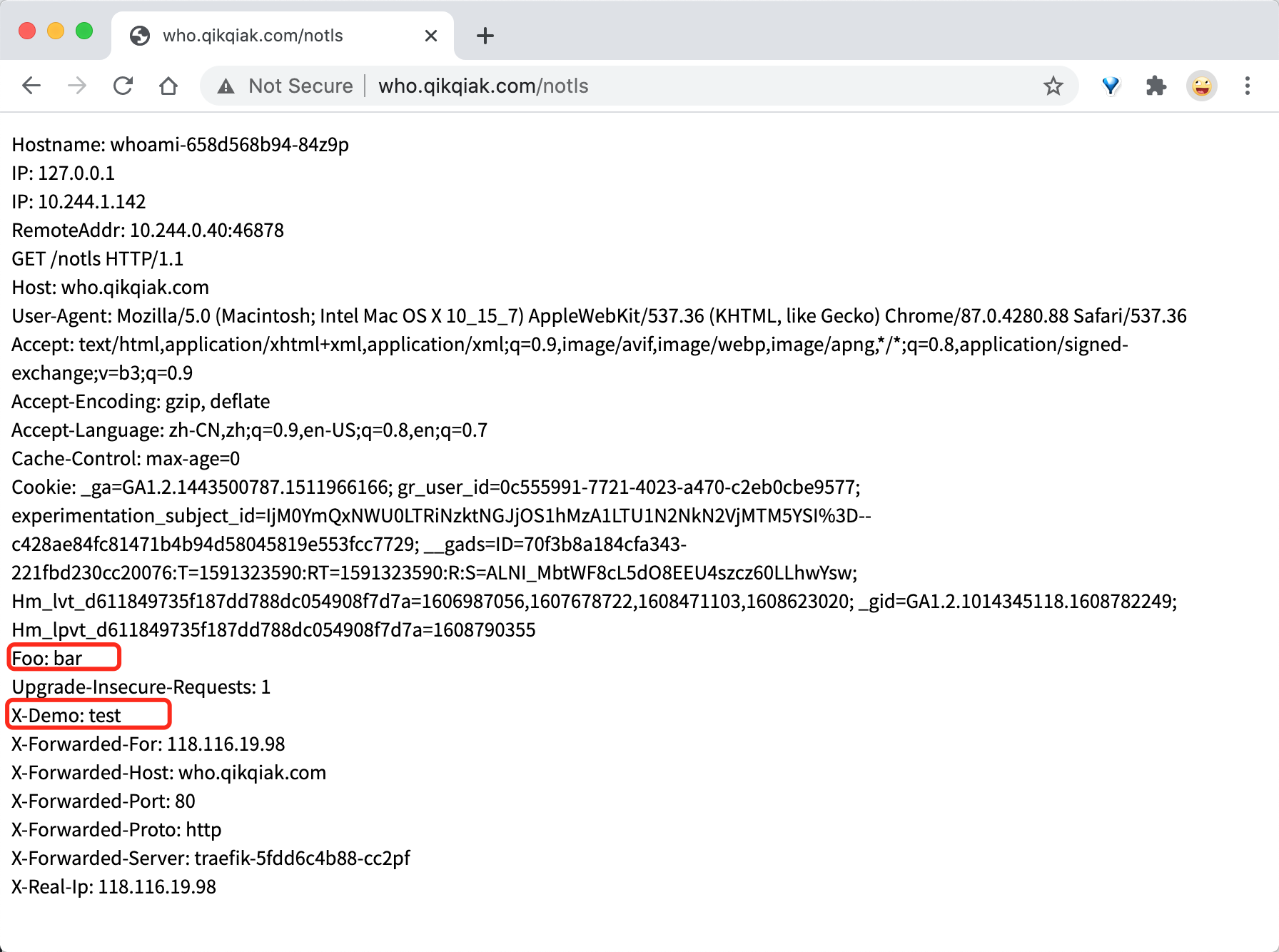
当然除了使用 Traefik Pilot 上开发者提供的插件之外,我们也可以根据自己的需求自行开发自己的插件,可以自行参考文档:https://doc.traefik.io/traefik-pilot/plugins/plugin-dev/。
1. 离线安装插件
由于网络原因,我们更多的场景下需要在本地环境加载插件,为解决这个问题,在 Traefik v2.5 版本后,就提供了一种直接从本地存储目录加载插件的新方法,只需要将插件源码放入一个名为 /plugins-local 的新目录,相对于当前工作目录去创建这个目录,比如我们直接使用的是 traefik 的 docker 镜像,则入口点则是根目录 /,Traefik 本身会去构建你的插件,所以我们要做的就是编写源代码,并把它放在正确的目录下,让 Traefik 来加载它即可。
需要注意的是由于在每次启动的时候插件只加载一次,所以如果我们希望重新加载你的插件源码的时候需要重新启动 Traefik。
1.1. 通过编译源代码本地上传插件
从 github 上克隆代码
PS C:\Users\xin\Desktop\objec> git clone --branch v0.2.2 --single-branch https://github.com/traefik/plugindemo.git
Cloning into 'plugindemo'...
remote: Enumerating objects: 96, done.
remote: Counting objects: 100% (33/33), done.
remote: Compressing objects: 100% (16/16), done.
Receiving objects:  64% (62/96)used 17 (delta 17), pack-reused 63 (from 1)
Receiving objects: 100% (96/96), 46.82 KiB | 826.00 KiB/s, done.
Resolving deltas: 100% (40/40), done.
Note: switching to '9756d9de43dd0883f70d49fdab7ac3ad0a29aff5'.1.2. 将代码推送到阿里云云效平台
PS C:\Users\xin\Desktop\objec\plugindemo> git remote set-url origin https://codeup.aliyun.com/66cf2d9246ea41274957ff8d/Traefik/plugindemo.git
PS C:\Users\xin\Desktop\objec\plugindemo> git remote -v
origin  https://codeup.aliyun.com/66cf2d9246ea41274957ff8d/Traefik/plugindemo.git (fetch)
origin  https://codeup.aliyun.com/66cf2d9246ea41274957ff8d/Traefik/plugindemo.git (push)
PS C:\Users\xin\Desktop\objec\plugindemo> git checkout -b main
Switched to a new branch 'main'
PS C:\Users\xin\Desktop\objec\plugindemo> git add .
PS C:\Users\xin\Desktop\objec\plugindemo> git commit
On branch main
nothing to commit, working tree clean
PS C:\Users\xin\Desktop\objec\plugindemo> git push -u origin main
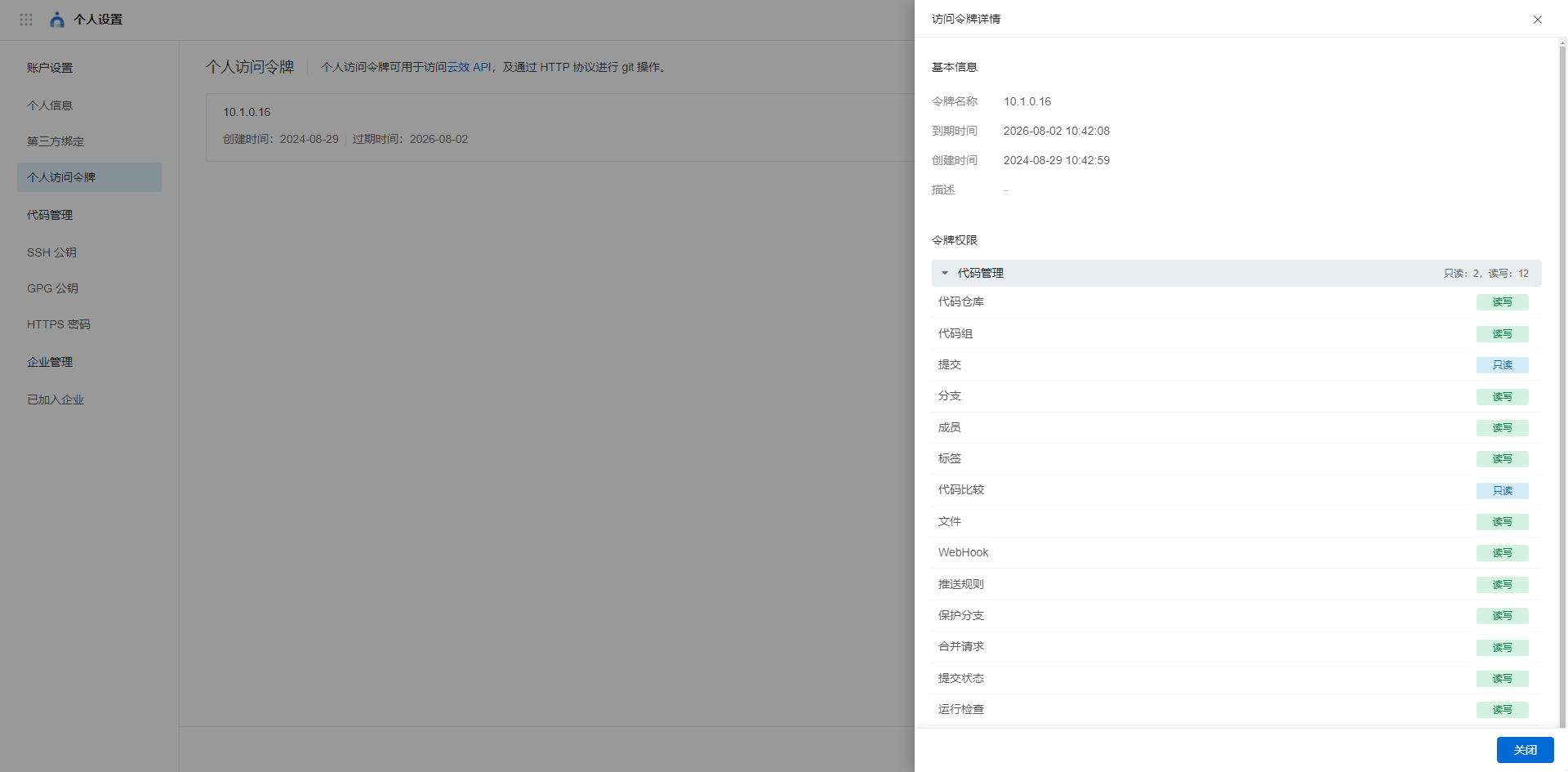
remote: 未认证
fatal: Authentication failed for 'https://codeup.aliyun.com/66cf2d9246ea41274957ff8d/Traefik/plugindemo.git/'
PS C:\Users\xin\Desktop\objec\plugindemo> git push -u origin main
Enumerating objects: 96, done.
Counting objects: 100% (96/96), done.
Delta compression using up to 32 threads
Compressing objects: 100% (43/43), done.
Writing objects: 100% (96/96), 46.83 KiB | 46.83 MiB/s, done.
Total 96 (delta 40), reused 96 (delta 40), pack-reused 0
To https://codeup.aliyun.com/66cf2d9246ea41274957ff8d/Traefik/plugindemo.git
 * [new branch]      main -> main
branch 'main' set up to track 'origin/main'.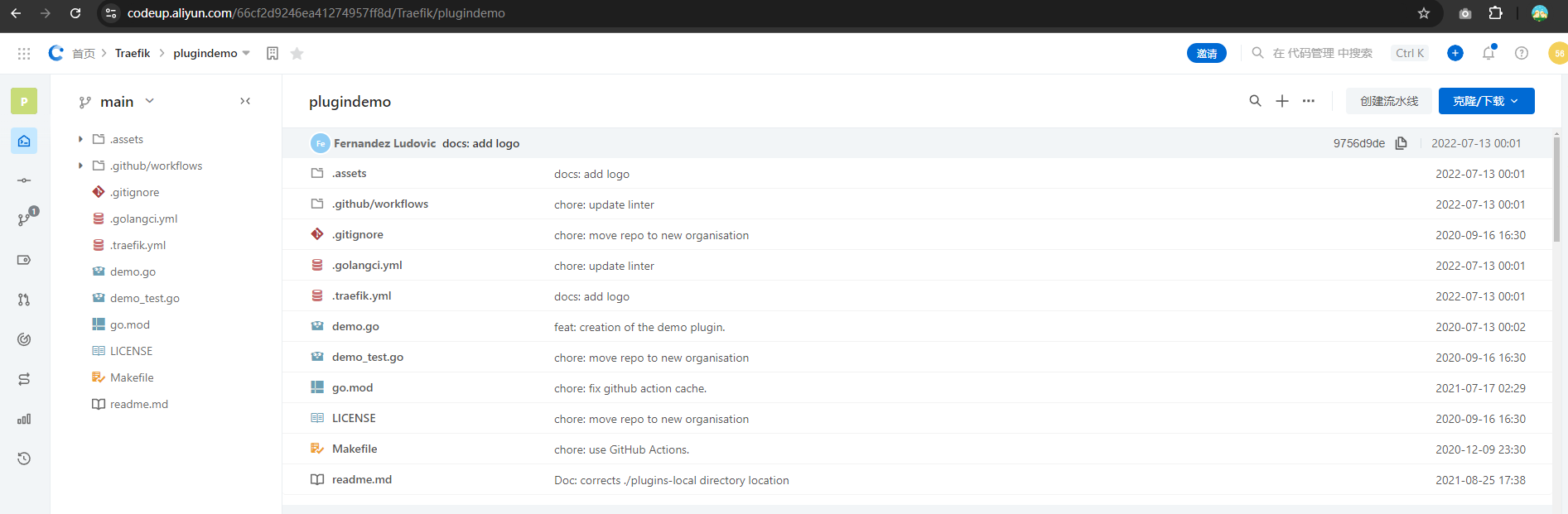
1.3. 开启 token 令牌
1.4. 准备镜像文件
下面我们使用一个简单的自定义插件示例来说明如何使用私有插件。首先我们定义一个名为 Dockerfile.demo 的 Dockerfile 文件,先从 git 仓库中克隆插件源码,然后以 traefik:v2.10.4 为基础镜像,将插件源码拷贝到 /plugins-local 目录,如下所示:
# 第一阶段:基于 Alpine Linux 的构建阶段
FROM registry.cn-beijing.aliyuncs.com/xxk8s/alpine:3 AS builder

# 定义构建时的参数
ARG PLUGIN_MODULE=github.com/traefik/plugindemo
# ARG PLUGIN_GIT_REPO=https://codeup.aliyun.com/66cf2d9246ea41274957ff8d/Traefik/plugindemo.git
ARG PLUGIN_GIT_REPO=https://562188771:pt-icTe43fGz5vFssFUcnOJTY7i_222fe9c0-fbc9-4f17-b2a4-63ac475553cd@codeup.aliyun.com/66cf2d9246ea41274957ff8d/Traefik/plugindemo.git
ARG PLUGIN_GIT_BRANCH=main

# 安装 Git 并克隆插件源码
RUN apk add --no-cache git && \
    mkdir -p /plugins-local/src/${PLUGIN_MODULE} && \
    git clone ${PLUGIN_GIT_REPO} /plugins-local/src/${PLUGIN_MODULE} \
    --depth 1 --single-branch --branch ${PLUGIN_GIT_BRANCH}

# 第二阶段:基于 Traefik v2.10.4 的最终镜像
FROM registry.cn-beijing.aliyuncs.com/xxk8s/traefik:v2.10.4

# 从第一阶段复制插件代码到最终镜像
COPY --from=builder /plugins-local /plugins-local1.5. 构建镜像
root@harbor01[10:56:53]/dockerfile/traefik #:docker build -t registry.cn-beijing.aliyuncs.com/xxk8s/traefik:v2.10.4-pl .
...
Cloning into '/plugins-local/src/codeup.aliyun.com/66cf2d9246ea41274957ff8d/Traefik/plugindemo'...
Removing intermediate container eb4cd57ab345
Step 6/7 : FROM registry.cn-beijing.aliyuncs.com/xxk8s/traefik:v2.10.4
...
Status: Downloaded newer image for registry.cn-beijing.aliyuncs.com/xxk8s/traefik:v2.10.4
 ---> de0354df4d5e
Step 7/7 : COPY --from=builder /plugins-local /plugins-local
 ---> ce80ce28003d
Successfully built ce80ce28003d
Successfully tagged registry.cn-beijing.aliyuncs.com/xxk8s/traefik:v2.10.4-pl进入容器查看是否有插件
root@harbor01[11:02:57]/dockerfile/traefik #:docker run --rm -it registry.cn-beijing.aliyuncs.com/xxk8s/traefik:v2.10.4-pl /bin/sh
= '/bin/sh' is not a Traefik command: assuming shell execution.
/ # ls
bin            entrypoint.sh  home           media          opt            proc           run            srv            tmp            var
dev            etc            lib            mnt            plugins-local  root           sbin           sys            usr
/plugins-local/src # cd codeup.aliyun.com/
/plugins-local/src/codeup.aliyun.com/66cf2d9246ea41274957ff8d/Traefik/plugindemo # ls
LICENSE Makefile demo.go demo_test.go go.mod readme.md1.6. 替换镜像
镜像构建完成后就可以使用这个镜像来测试 demo 插件了,同样我们这里直接去覆盖的 Values 文件,xin-traefik-valuse.yaml 文件中的 Values 值,将镜像修改成上面我们自定义的镜像地址:
在 Traefik 中,当你指定 **--experimental.localPlugins.plugindemo.moduleName=codeup.aliyun.com/66cf2d9246ea41274957ff8d/Traefik/plugindemo** 时,Traefik 会寻找本地插件的源码位置。
这个位置应该匹配你在 Dockerfile 中复制到镜像中的位置,也就是 **/plugins-local/src/codeup.aliyun.com/66cf2d9246ea41274957ff8d/Traefik/plugindemo**。
#xin-traefik-valuse.yaml
image:
  registry: registry.cn-beijing.aliyuncs.com
  repository: xxk8s/traefik
  tag: "v2.10.4-pl2"
  pullPolicy: IfNotPresent


# 其他省略

additionalArguments:
  # 添加 demo plugin 的本地支持
  - --experimental.localPlugins.plugindemo.moduleName=github.com/traefik/plugindemo
  #- --experimental.localPlugins.plugindemo.moduleName=codeup.aliyun.com/66cf2d9246ea41274957ff8d/Traefik/plugindemo
# 其他省略注意上面我们添加 Traefik 的启动参数的时候使用的 --experimental.localPlugins。然后重新更新 Traefik:
$ helm upgrade --install traefik ./ -f ./xin-traefik-valuse.yaml --namespace kube-systemroot@master01:/k8s-traefik/traefik# kubectl get pod -n kube-system
NAME READY STATUS RESTARTS AGE
traefik-56c988959c-dvm6x 1/1 Running 0 79s
Events:
Type Reason Age From Message
---- ------ ---- ---- -------
Normal Scheduled 74s default-scheduler Successfully assigned kube-system/traefik-56c988959c-dvm6x to master01
Warning FailedAttachVolume 74s attachdetach-controller Multi-Attach error for volume "pvc-856bc7d6-4d51-4904-b200-57c63cc1d38e" Volume is already used by pod(s) traefik-6f65d99b7b-cc962
Normal SuccessfulAttachVolume 27s attachdetach-controller AttachVolume.Attach succeeded for volume "pvc-856bc7d6-4d51-4904-b200-57c63cc1d38e"
Normal Pulling 9s kubelet Pulling image "registry.cn-beijing.aliyuncs.com/xxk8s/traefik:v2.10.4-pl2"
Normal Pulled 8s kubelet Successfully pulled image "registry.cn-beijing.aliyuncs.com/xxk8s/traefik:v2.10.4-pl2" in 968.716927ms
Normal Created 8s kubelet Created container traefik
Normal Started 8s kubelet Started container traefik1.7. 创建插件中间件
更新完成后就可以使用我们的私有插件来创建一个 Middleware 对象了:
# kubectl apply -f offline-plugin-private-demo.yaml
apiVersion: traefik.containo.us/v1alpha1
kind: Middleware
metadata:
  name: offline-plugin-private-demo
  namespace: test-pod
spec:
  plugin:
    plugindemo:  # 插件名
      Headers:
        X-Demo: private-demo
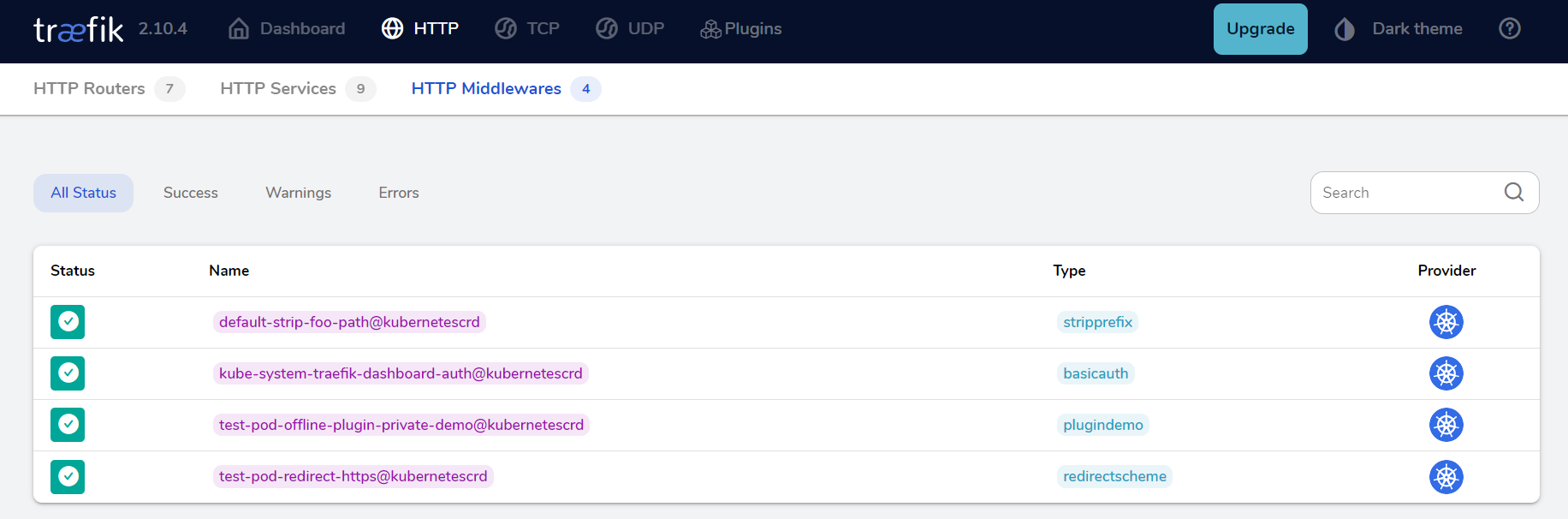
Foo: bar在 dashboard 中可以查看到中间件
1.8. 测试应用插件
然后添加到上面的 whoami 应用的 IngressRoute 对象中去:
apiVersion: traefik.containo.us/v1alpha1
kind: IngressRoute
metadata:
  name: ingressroute-demo
  namespace: test-pod
spec:
  entryPoints:
    - web
  routes:
    - match: Host(`who.xinn.cc`) && PathPrefix(`/notls`)
      kind: Rule
      services:
        - name: whoami # K8s Service
          port: 80
      middlewares:
- name: offline-plugin-private-demo # 使用上面新建的 middleware在 dashboard 可以查看到当前 ingressRoute 的全流程
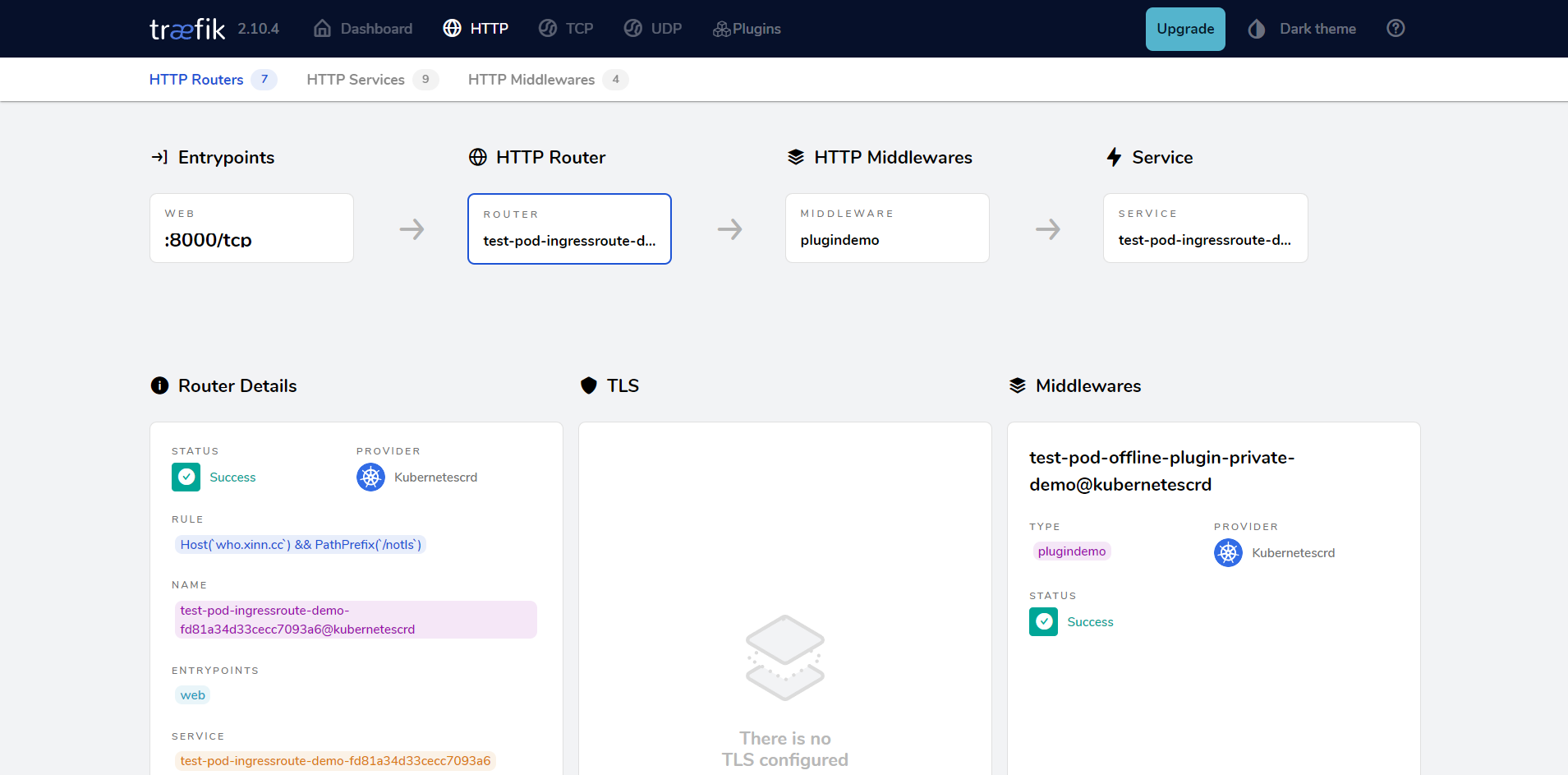
更新上面的资源对象后,我们再去访问 http://who.xinn.cc:32080/notls 就可以看到新增了两个上面插件中定义的两个 Header,证明我们的私有插件配置成功了: